Translate a Document from Japanese to English: When to Use Free Tools vs a Pro Service
Translating Japanese documents to English no longer requires expensive software or weeks of waiting. Whether you’re dealing with a scanned PDF, a technical manual, or an everyday memo, the right free tool can handle most jobs in under five minutes.
This guide walks you through exactly how to get professional-quality results — starting with free options — and shows you where each tool’s limits lie so you can make an informed decision before you start.
What you’ll learn:
- Which free and paid tools work best for each file format? And their real accuracy limits
- A step-by-step OCR tutorial for translating scanned Japanese PDFs at zero cost
- Advanced techniques (glossary setup, prompt engineering) to push AI accuracy from 70% to 90%+
- A simple five-question checklist to know when a professional translator is genuinely worth it
目次
Quick Start Guide: Japanese-to-English Translation in 3 Steps
Identify your document type, choose the right tool for your situation, and upload — most Japanese documents can be translated in under 10 minutes.
Step 1 — Identify Whether Your Document Is Editable or Scanned
Try highlighting text in your PDF. If you can select it, the file is editable. If nothing highlights, it’s a scanned image — you’ll need OCR first (covered in detail below).
Common file types by category:
- Editable: Word (.docx), Excel (.xlsx), PowerPoint (.pptx), text-selectable PDFs
- Scanned: Image-based PDFs, photos of documents, faxed files
- Special cases: Vertical Japanese text (縦書き), password-protected files, mixed Japanese-English documents
Step 2 — Choose the Best Translation Tool for Your Document Type
| Your Situation | Best Tool | Time Needed |
| Editable document, want natural phrasing | DeepL Free | 1–2 min |
| Scanned PDF | Google Drive OCR → Google Translate | 5–7 min |
| Large file (10MB+) or vertical text | Gemini | 2–3 min |
| Need to adjust tone or context | ChatGPT / Gemini | 2–5 min |
Step 3 — Upload Your File and Run the Translation
DeepL: Go to deepl.com → click “Translate files” → upload your document → download the translated file. That’s it.
Google Translate: Go to translate.google.com → click the document icon → upload → translate.
Gemini: Open gemini.google.com → attach your file or paste text → type “Translate this to English.”
Scanned PDFs: Follow the full OCR tutorial in the next section.
Translation Tool Comparison: Best Options for Each File Type and Use Case
Compare five leading tools side by side to find the best fit for your file type, size, and budget.
File Format Compatibility
| Tool | PDF (Editable) | PDF (Scanned) | Word/ Excel/ PPT | Max File Size | Monthly Limit | Cost |
| DeepL Free | Yes | No | Yes | 5 MB | 3 files | $0 |
| DeepL Pro | Yes | No | Yes | 30 MB | Unlimited | $10.49/mo |
| Google Translate | Yes | Yes (via OCR) | Yes | 10 MB | Unlimited | $0 |
| ChatGPT Plus | Yes (text only) | No | No | — | Unlimited | $20/mo |
| Gemini | Yes | Yes (image mode) | Text only | 50 MB | Unlimited | $0 |
Key insights at a glance:
- Scanned PDFs: Only Google Translate (via Google Drive OCR) and Gemini support image-based documents
- Large files (10 MB+): Use Gemini (50 MB limit) or DeepL Pro (30 MB limit)
- Vertical text (縦書き): Use Gemini or ChatGPT image upload mode
- Unlimited free usage: Google Translate and Gemini
Free Translation Tools Reviewed: DeepL, Google Translate, ChatGPT, Gemini
DeepL, Google Translate, and ChatGPT/Gemini each lead in a different area — natural phrasing, scanned document support, and contextual tone — so the right choice depends on what you’re translating.
DeepL Free — Best for Natural Japanese-to-English Translation Quality
DeepL uses neural networks trained on professional-grade translations, producing the most natural-sounding English of any free tool. Its glossary feature lets you upload a CSV with company-specific terms — for example, mapping 部長 to “Department Manager” — so every document uses consistent terminology.
- Strengths: Most natural phrasing, glossary support, excellent format preservation
- Limitations: Only 3 documents per month, 5 MB file limit, no scanned document support
- Best for: Word documents, internal memos, marketing drafts
- Rating: 4.7/5 — based on output naturalness, format retention, and ease of use
Google Translate — Best Free OCR and Scanned PDF Translation Tool
Google Translate is the only major free tool with built-in OCR support and unlimited usage. It handles 130+ languages, making it ideal for multi-language workflows. Phrasing is more literal than DeepL, but the Google Drive OCR integration is unmatched for scanned files.
- Strengths: Unlimited usage, OCR via Google Drive, 10 MB files, 130+ languages
- Limitations: Less natural phrasing than DeepL, no glossary feature
- Best for: Scanned PDFs, large files, Excel spreadsheets, personal documents
- Rating: 4.3/5 — best-in-class for scanned documents; phrasing quality trails DeepL
ChatGPT & Gemini — Best for Contextual and Tone-Adjusted Translation
Large language models don’t just translate — they understand context and adjust tone on command. Ask ChatGPT to “translate this email using formal business language” or “adapt this marketing copy for a US audience,” and it adapts accordingly. This makes them uniquely useful for documents where literal translation produces awkward results.
- Strengths: Context-aware, tone adjustment, can explain translation choices, self-correction
- Limitations: No direct file upload in free ChatGPT; may occasionally add content not in the original
- Best for: Emails, short documents with specific tone requirements, creative content
- Rating: 4.5/5 — unmatched for context sensitivity; best combined with a review pass
How to Translate Scanned Japanese PDFs: Complete OCR Guide (Google Drive OCR)
- The problem: Your Japanese PDF has text locked inside an image — you can’t select or copy it.
- The solution: Google’s free OCR converts image-based PDFs into editable, translatable text in 5–7 minutes at no cost.
Step 1: Upload to Google Drive
Open drive.google.com and drag your scanned PDF into your drive. Wait for the upload to complete (green checkmark). If your file exceeds 10 MB, compress it first using a free tool like Smallpdf.
Step 2: Activate OCR
Right-click your uploaded PDF → hover over “Open with” → select “Google Docs.” Google’s AI automatically scans every character and converts it to editable text in 10–30 seconds. No action required — the OCR runs automatically.
Step 3: Review and Clean
A new Google Docs document opens with your extracted text.
- Horizontal Japanese text (横書き): Typically converts at around 95% accuracy.
- Vertical text (縦書き): Columns may appear in reverse order — manually reorder them, or use Gemini’s image mode instead (upload the PDF image directly for better handling).
Spend 2–3 minutes fixing obvious errors and removing stray line breaks before translating.
Step 4: Translate
In Google Docs, click Tools → Translate document → name your file → choose English → click Translate. Google creates a new document with the English translation, leaving your Japanese OCR version unchanged.
Common OCR Problems and Fixes
Garbled characters throughout
- Cause: Low scan quality
- Fix: Re-scan at 300 DPI, or use Adobe Acrobat’s OCR first
Vertical text in wrong order
- Cause: Column reading direction
- Fix: Manually reorder text blocks, or switch to Gemini image mode
Tables lose structure
- Cause: Complex layout
- Fix: Manually rebuild tables, or use a professional service for complex layouts
Advanced Translation Techniques: Glossaries and Prompt Engineering

Take your translations from good to professional by building a custom glossary for consistent terminology and crafting smarter prompts that can push AI accuracy from 70% to 90%+.
How to Create a DeepL Glossary for Consistent Terminology
Glossaries ensure that 部長 always becomes “Department Manager” — never “Division Head” or “Director.” This consistency matters for any document that other people will read.
- Open Excel or Google Sheets and create two columns with no headers.
- Left column: Japanese terms. Right column: your preferred English translations.
- Example entries:
- 社内規定,Internal Regulations
- 部長,Department Manager
- 納品,Delivery
- 検収,Acceptance Inspection
- Save as CSV with UTF-8 encoding.
- Log into DeepL Pro → click “Glossary” in the sidebar → “Create glossary” → name it (e.g., “Company_Terms_2026”) → choose Japanese-to-English → import your CSV → save.
- Select this glossary before translating any document.
Pro tip: Create separate glossaries for legal terms, product names, HR titles, and technical specs. Different document types need different vocabulary sets — one massive list gets unwieldy fast.
Prompt Engineering Tips for High-Accuracy AI Translation
The prompt you use determines the quality of the output more than the tool itself.
Basic prompt (70% accuracy)
“Translate this Japanese text to English.”
Advanced prompt (90%+ accuracy)
“You are a professional Japanese-English translator specializing in business documents. Translate the following text maintaining a formal business tone. Preserve all numbering and paragraph structure. After translating, list any terms where multiple interpretations exist, with your reasoning. [Your Japanese text here]”
Ready-to-use templates
Legal documents
“Act as a certified legal translator with experience in commercial contracts. Use ‘shall’ for obligations and ‘may’ for permissions. Translate 甲/乙 as ‘Party A’/’Party B.’ Flag any Japanese legal concepts without direct English equivalents. Preserve all clause numbering.”
Marketing content
“You are a native English copywriter adapting Japanese marketing for US audiences. Prioritize persuasive impact over literal accuracy. Adapt cultural references for Western readers. Maintain the emotional tone and call-to-action strength. Explain any major adaptations you make.”
Self-correction technique
After the initial translation, ask: “Review your translation for subject-verb agreement errors, passive voice overuse, and inconsistent terminology. Provide a corrected version.” This catches 40–60% of errors that slipped through the first pass.
Best Translation Method by Document Type (Academic, Technical, Business, Marketing)
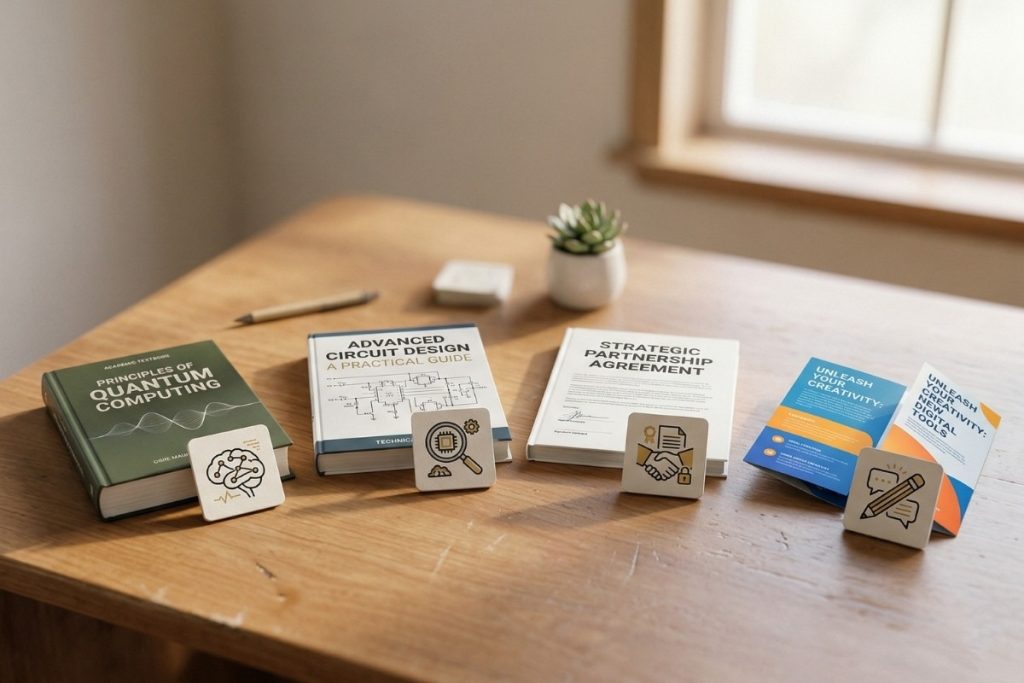
The right tool depends entirely on what you’re translating — match your document type to the recommended approach, estimated cost, and turnaround time below.
Academic Papers and Research
Recommended: DeepL Pro ($10/month) + native English speaker review
Why: Academic papers need precise terminology and natural phrasing, but rarely require legal exactness. DeepL handles long-form content well. Build a glossary with field-specific terms (研究方法 → “Research Methodology,” not “Research Method”) for consistency.
Estimated total cost: approximately $160 (DeepL Pro + expert review)
Turnaround: 3–6 hours
Product Manuals and Technical Documentation
Recommended: CAT tools (Trados / memoQ) with Translation Memory
Why: Manuals contain 50–500 pages of repetitive terminology. CAT tools store every translated sentence in a database. When you update to version 2.0, the software auto-fills 70–90% of unchanged text — you only pay for new sections.
First manual: $1,500–$2,500 (software + translation)
Updates: $200–$500 (new sections only)
Quick Business Emails and Internal Communications
Recommended: ChatGPT or Gemini with a custom prompt
Why: Internal emails need fast turnaround and tone matching, not legal precision. Use this prompt: “Translate this Japanese email to English maintaining a professional B2B tone. Suggest an appropriate subject line.”
Cost: $0 (or $20/month for ChatGPT Plus)
Accuracy: 85–90% — sufficient for internal use
Marketing Materials and Website Content
Recommended: AI first draft + native English copywriter rewrite
Why: Direct translation of Japanese marketing frequently sounds unnatural in English. Cultural references don’t transfer cleanly (頑張ってください → “Do your best!” sounds patronizing to Western readers). SEO keywords also differ between markets.
Cost: $0 AI draft + $200–$500 copywriter rewrite
Alternative: Professional transcreation service ($0.25–$0.50/word)
Common Japanese-to-English Translation Problems and How to Fix Them
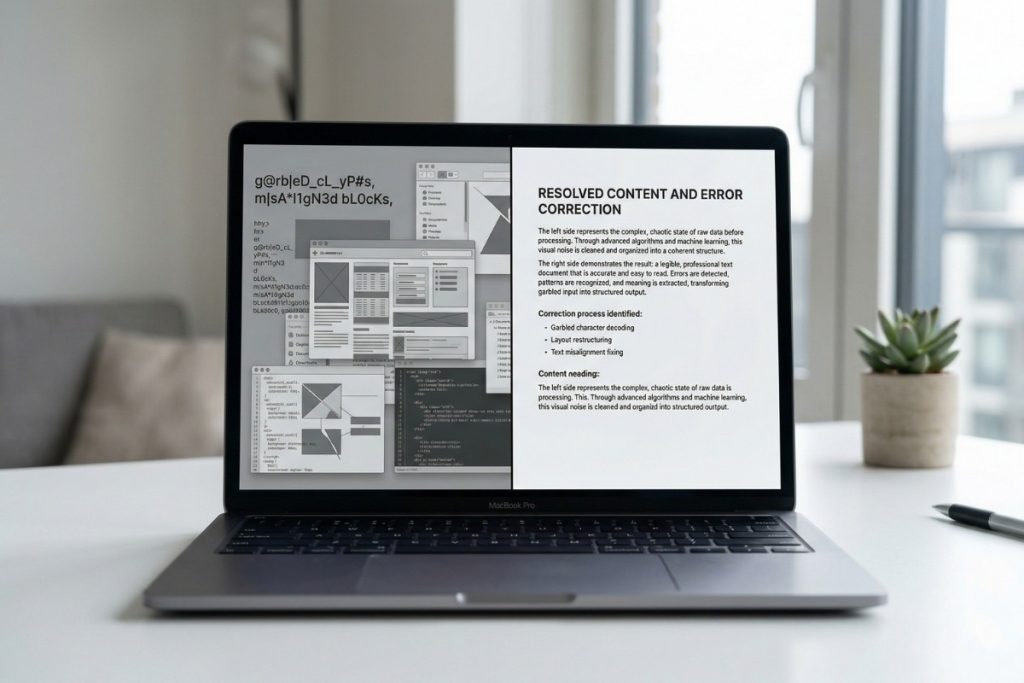
From garbled characters to over-translated honorifics, here are the five most common Japanese-English translation issues — and exactly how to fix each one.
Character Corruption (Mojibake)
Symptoms: Text displays as garbled characters instead of Japanese
Cause: Encoding mismatch (UTF-8 vs. Shift-JIS vs. EUC-JP)
Fix: Open the file in Notepad++ or Sublime Text → convert to UTF-8 → save and retry
Prevention: Always save Japanese files as UTF-8 with BOM
Text Expansion Breaking Layouts
Problem: English takes up 30–50% more space than Japanese. “今後ともよろしくお願いします” (11 characters) becomes “We look forward to continuing our partnership” (43 characters). PowerPoint slides overflow.
Fix: Before translating, reduce font size by 2 points. After translating, set PowerPoint text boxes to “Shrink text on overflow.”
Prevention: Design original slides with 40% white space.
Missing Subjects
Problem: “承認されました” becomes “It was approved” with no indication of who approved it.
Fix: Check the original context to identify the actor, then add the subject manually.
Future prevention: Add to your ChatGPT prompt: “When translating sentences with omitted subjects, identify and insert the subject based on context. If uncertain, flag with [SUBJECT UNCLEAR].”
Keigo Over-Translation
Problem: “ご査収ください” becomes “Please humbly receive and inspect” instead of simply “Please review.”
Common mistakes and natural English equivalents:
お世話になっております → Awkward: “I am indebted to your care” → Natural: “Thank you for your continued support”
よろしくお願いします → Awkward: “Please treat me favorably” → Natural: “Thank you” / “Looking forward to working with you”
ご査収ください → Awkward: “Please humbly receive and inspect” → Natural: “Please review” / “Please find the attached”
Fix: Build a keigo glossary in DeepL with natural English equivalents for the phrases your documents use most.
Date and Number Format Errors
Problem: AI may not convert 令和8年 to 2026, leaves ¥10,000 without USD context, or miscalculates 10億円.
Fix checklist:
- Convert Reiwa/Heisei years to the Western calendar (令和8年 = 2026)
- Add USD context to yen amounts where relevant
- Manually verify all numbers — Japanese uses 万 (10,000) and 億 (100 million), which don’t map directly to English counting units
- Match date format to your audience (US: MM/DD/YYYY; EU: DD/MM/YYYY)
Data Privacy and Compliance for Japanese-English Translation Tools

If your documents contain personal information, medical records, financial data, trade secrets, or NDA-covered content, check data privacy regulations before uploading to any tool.
Key regulations:
- APPI (Japan): Requires consent before transferring personal data overseas. Violations: up to ¥100 million fine.
- GDPR (Europe): Mandates “right to be forgotten” and 72-hour breach reporting. Violations: up to €20 million or 4% of global revenue.
Tool Privacy Comparison
| Tool | Data Usage | Server Location | Notes |
| DeepL Free | May be used for training | Germany (EU) | — |
| DeepL Pro | Deleted immediately after translation | Germany (EU) | GDPR compliant |
| Google Translate (free) | May be used for training | Global | Enterprise options available |
| ChatGPT Free | May be used for training | US | — |
| ChatGPT Enterprise | Never used for training | US | SOC 2 certified |
| Professional services | Covered by NDA | Per agreement | APPI/GDPR certified available |
Compliance Checklist
Before uploading any document
- Anonymize personal data (replace names with “Person A,” etc.)
- Check the tool’s privacy policy for data retention and server location
- Use enterprise/paid versions for sensitive content
- Verify HTTPS encryption (TLS 1.3+)
- Document your process for audit trails
- Obtain written consent if translating client data
Maximum security: Use on-premise CAT tools (data never leaves your server) or professional translators with signed NDAs and APPI/GDPR certification.
Translation Cost Guide: Free Tools vs. Paid AI vs. Professional Services
From $0 free tools to professional rates of $0.50/word, here is a clear cost breakdown — including a real-world comparison for a 5,000-word document — to help you find the most cost-effective option for your needs.
| Tool / Service | Cost | Best For |
| DeepL Free | $0 | Personal use, 3 docs/month |
| DeepL Pro | $10.49/month | Regular business use |
| Google Translate | $0 | Unlimited personal/internal use |
| ChatGPT Plus | $20/month | Context-sensitive translation |
| Gemini | $0 | Large files, scanned docs |
| Professional (general) | $0.12/character | Business-critical documents |
| Professional (legal, medical, technical) | $0.132–$0.156/character | Specialist fields — 10–30% surcharge applies |
| Professional (marketing/transcreation) | $0.25–$0.50/word | Transcreation / copywriting |
Certification: +$30–$50 flat fee (for legal/official use)
Minimum charge: 400 words / 800 characters
Real Cost Comparison: 5,000-Word Business Manual
- Free tools only: $0 tool cost + 8 hours work at $50/hr = $400 total — 85–90% accuracy
- DeepL Pro: $10.49/month + 4 hours at $50/hr = around $210 total — 90–95% accuracy
- Professional translation: around $600 translation + 1 hour review at $50/hr = around $650 total — 99%+ accuracy
Key insight: Paid AI tools offer the best ROI for 5,000–50,000 words per year. Professional services become cost-effective when your time is worth $80+/hour, or when a translation error carries financial or reputational consequences.
When Free Tools Are Not Enough: How to Decide If You Need a Professional Translator

For personal documents, internal communications, academic research, and most day-to-day reading, free and paid AI tools do an excellent job. The guide above covers the vast majority of translation needs most people have.
There are specific situations, however, where the gap between “good enough” and “accurate enough” carries real consequences.
Ask yourself these five questions:
- What happens if there is a translation error? — Nothing serious → AI tools are fine. Financial loss or legal issues → consider professional.
- Will anyone sign this document? — No → AI tools are fine. Yes → professional recommended.
- Does it involve money or legal obligations? — No → AI tools are fine. Yes → professional recommended.
- Will customers or clients read it? — Internal only → AI + review. External-facing → professional recommended.
- Is 99%+ accuracy required? — 85–95% acceptable → AI tools. 99%+ required → professional.
If you answered “professional recommended” to any of those questions, an AI tool can still help you understand the document — but it shouldn’t be your final, deliverable translation.
What Professional Translators Offer Beyond AI Tools
Beyond translation itself, a professional service provides:
- Native speakers with subject matter expertise (legal, medical, technical, marketing)
- Multi-stage quality assurance (translation → review → proofreading → final check)
- Professional liability insurance (typically $1–2 million coverage)
- Certification for official use (courts, immigration authorities, universities)
- NDA and APPI/GDPR compliance
- Translation memory for your company — 20–40% discount on future projects
- Unlimited revisions until satisfied
- Rush delivery options (24–48 hours)
Professional Japanese-English Translation Services by AtGlobal (ISO 17100 Certified)

If your five-question checklist pointed toward professional translation, AtGlobal, Ltd. is a natural next step. Since 2002, AtGlobal has supported over 1,000 clients — including FORTUNE Global Top 10 technology companies — with ISO 17100-certified Japanese-English translation.
Every project is handled by native English speakers with subject matter expertise. A multi-stage QA process, full APPI and GDPR compliance, and a free quote within two hours make it straightforward to find out what your specific project would actually cost.
Free tools have their place — this guide has covered them thoroughly. When your document carries legal weight, represents your company to clients, or simply needs to be right the first time, contact AtGlobal for a no-obligation quote.
FAQ: Common Questions About Japanese-to-English Translation
- Can I translate a handwritten Japanese document using free tools?
-
Standard OCR tools perform poorly on handwritten Japanese due to natural variation in brushstroke style. Google Lens is the best free option, but accuracy remains inconsistent. For any handwritten document that matters, a professional translator is strongly recommended.
- How do I verify translation accuracy if I don’t speak Japanese?
-
Run the same document through DeepL, Google Translate, and ChatGPT, then compare all three outputs. Significant differences signal genuine ambiguity in the source. For casual use, native speaker platforms like HiNative work well. For business or legal documents, only professional translation provides reliable verification.
- Is certified translation required for immigration and visa applications?
-
Yes. USCIS and most immigration authorities require certified translations of foreign documents. Certification means a signed statement from the translator — notarization is not always required separately. Free tools cannot produce certified translations. A professional agency provides the certification, usually for a small additional fee.
- What is the best way to translate a Japanese document on a smartphone?
-
Google Lens offers instant camera-based translation. DeepL’s mobile app delivers higher quality for longer documents. Both support file uploads. For sensitive business content, avoid free app versions, which may retain your data — use a paid or enterprise version instead.
- Can free tools accurately translate classical Japanese or older documents?
-
No. Standard tools are not trained on classical Japanese grammar or pre-modern scripts such as kuzushiji. Results are unreliable. For any document in classical Japanese, a professional translator with historical expertise is the only dependable option.
- What is the difference between translation and localization?
-
Translation converts Japanese text to English accurately. Localization adapts the content culturally — adjusting tone, references, and style for the target audience. For marketing, websites, and product content, localization produces far more natural and effective results than direct translation alone.
- How do I translate Japanese text embedded in an image or screenshot?
-
Google Lens translates Japanese text from photos in real time. On desktop, tools like Yandex Translate and Smartcat’s screenshot translator extract and translate image text via OCR. Quality depends on image resolution. For complex layouts or high-stakes content, professional image translation services are available.
Conclusion: Choosing the Right Japanese-to-English Translation Method in 2026
- First, identify whether your document is editable or scanned — scanned files need OCR before translation.
- Free tools (DeepL, Google Translate, Gemini) work well for personal and internal use, with typical accuracy of 85–90%.
- Scanned PDFs can be translated for free via Google Drive’s built-in OCR in about 5–7 minutes.
- DeepL glossaries and detailed ChatGPT prompts can significantly improve accuracy and terminology consistency.
- Paid AI tools (DeepL Pro, ChatGPT Plus) deliver 90–95% accuracy at $10–$20/month.
- Documents containing personal or confidential data must be checked for APPI/GDPR compliance before uploading to any tool.
- If your five-question checklist points toward professional translation for your document, free tools are useful for understanding it — but a professional translator should produce the final deliverable.
This guide is produced by AtGlobal, Ltd., a Japanese-English translation agency certified to ISO 17100. Our goal is to help you solve most translation challenges yourself — and to be here when the stakes require something more.